TravelAppBuilder is a Progressive Web App, or PWA for short. This means you install your personal travel app directly from your smartphone's browser. You do not need to download anything from the App Store or Google Play.
After installation, TravelAppBuilder has its own icon on your home screen and opens full-screen, just like a regular app.
What is a PWA?
A PWA is a website that behaves like an app on your smartphone.
You first open the travel app using a personal link or QR code. You then add it to your phone's home screen. From that moment on, it appears alongside your other apps and you can open it with a single tap.
For TravelAppBuilder, this means:
- no installation via an app store;
- no large installation file;
- no separate Apple or Google account required;
- its own icon on your home screen;
- full-screen use without a traditional browser bar;
- important travel information that remains available offline.
How do you install TravelAppBuilder on an iPhone?
On an iPhone, you install TravelAppBuilder via Safari.
- Open the personal link to your travel app in Safari.
- At the bottom, tap the share icon: the square with the upward arrow.
- Scroll down.
- Choose ‘Add to Home Screen’.
- Check the name of the travel app.
- Tap ‘Add’ in the top right.
The icon for your travel app will now appear alongside your other apps.
I opened the link in Chrome on my iPhone. What should I do?
Open the link again in Safari.
In Chrome, tap the share menu, copy the link and then paste it into Safari. Follow the steps to add the app to your home screen.
How do you install TravelAppBuilder on Android?
On an Android phone, the easiest way to install TravelAppBuilder is via Google Chrome.
- Open the personal link to your travel app in Chrome.
- Tap the three dots in the top right.
- Choose ‘Install app’ or ‘Add to Home screen’.
- Confirm the installation.
TravelAppBuilder will then appear as a regular app icon on your home screen.
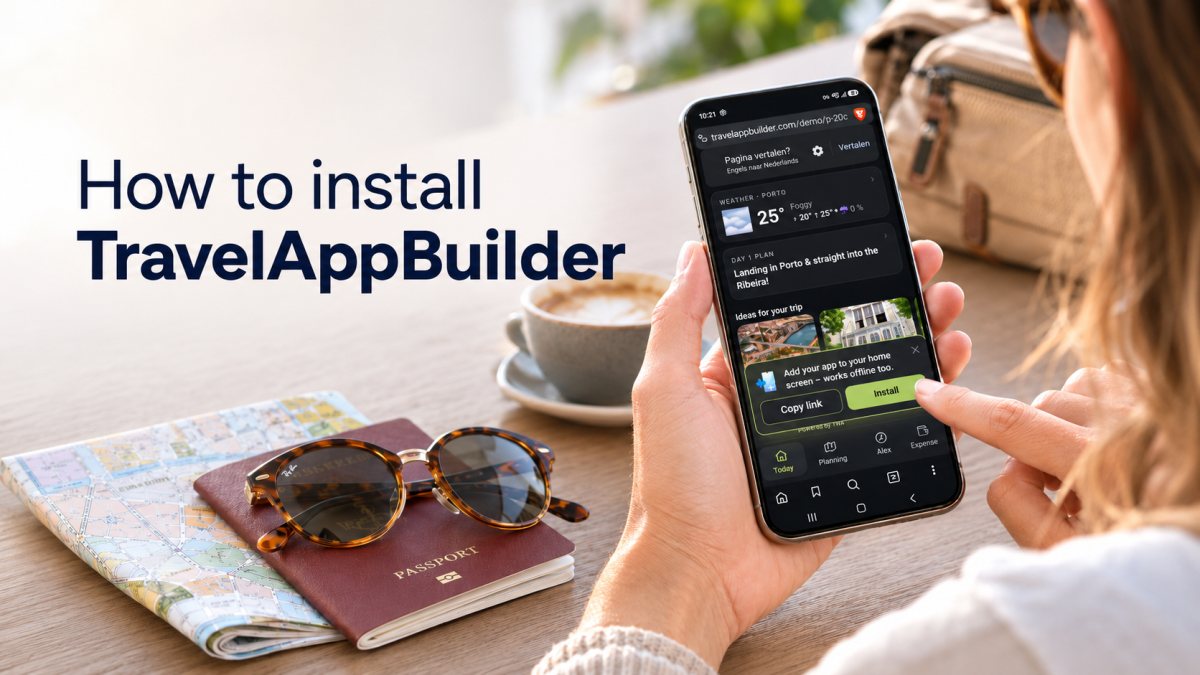
On some Android devices, a notification will appear automatically asking whether you want to install the app. You can tap ‘Install’ directly.
Do I need to download TravelAppBuilder from the App Store or Google Play?
No. TravelAppBuilder is installed directly from Safari or Chrome.
So you do not need to:
- go to an app store;
- search for a separate app;
- download a large file;
- create an Apple or Google account.
You always use the personal link or QR code associated with your trip.
Where can I find my travel app after installation?
After installation, TravelAppBuilder will appear on your smartphone's home screen, alongside your other apps.
The icon opens your personal travel app directly. You will not need to look up the original link every time.
Can I use TravelAppBuilder without installing the app?
Yes. You can also open the travel app in your browser using the personal link.
However, installing it is more convenient because:
- the icon is always on your home screen;
- the app opens full-screen;
- you do not need to search for the link each time;
- the experience feels more like a regular mobile app.
Does TravelAppBuilder work offline?
Important parts of the travel app can remain available without an internet connection after the app and travel information have been opened online at least once.
This is useful in places with:
- a weak internet connection;
- expensive mobile data;
- poor reception;
- no Wi-Fi.
Parts that require up-to-date information will be refreshed as soon as you have a connection again.
Why does TravelAppBuilder use a PWA?
A PWA is particularly well suited to a personal travel app.
Each TravelAppBuilder app is created for one specific trip. You do not need to install a large general-purpose app and then create an account or build your trip manually.
You receive your personal travel app, open the link and add it to your home screen. After your trip, you can remove the app again just like any other app.
How do you remove TravelAppBuilder after your trip?
You remove the travel app in the same way as a regular app.
On iPhone
- Press and hold the app icon.
- Choose ‘Remove App’.
- Confirm the removal.
On Android
- Press and hold the app icon.
- Choose ‘Remove’ or ‘Uninstall’.
- Confirm the removal.
How much does a personal travel app cost?
A personal TravelAppBuilder travel app costs €19.
You receive one travel app containing all the information for your trip. You only pay when you publish the travel app.
How do you get started?
Upload your booking documents, check your travel app and publish it when everything is ready. Then open the personal link on your smartphone and install the app via Safari or Chrome.
One trip, one personal app and all the important information at your fingertips.